> For the complete documentation index, see [llms.txt](https://help.exporteo.solvenium.com/llms.txt). Markdown versions of documentation pages are available by appending `.md` to page URLs; this page is available as [Markdown](https://help.exporteo.solvenium.com/destination-settings/ftp.md).
# FTP
The FTP(S) channel allows you to upload order data files directly to an FTP server. This is useful for integrating with suppliers, warehouses, or other systems that receive data via FTP file transfers.
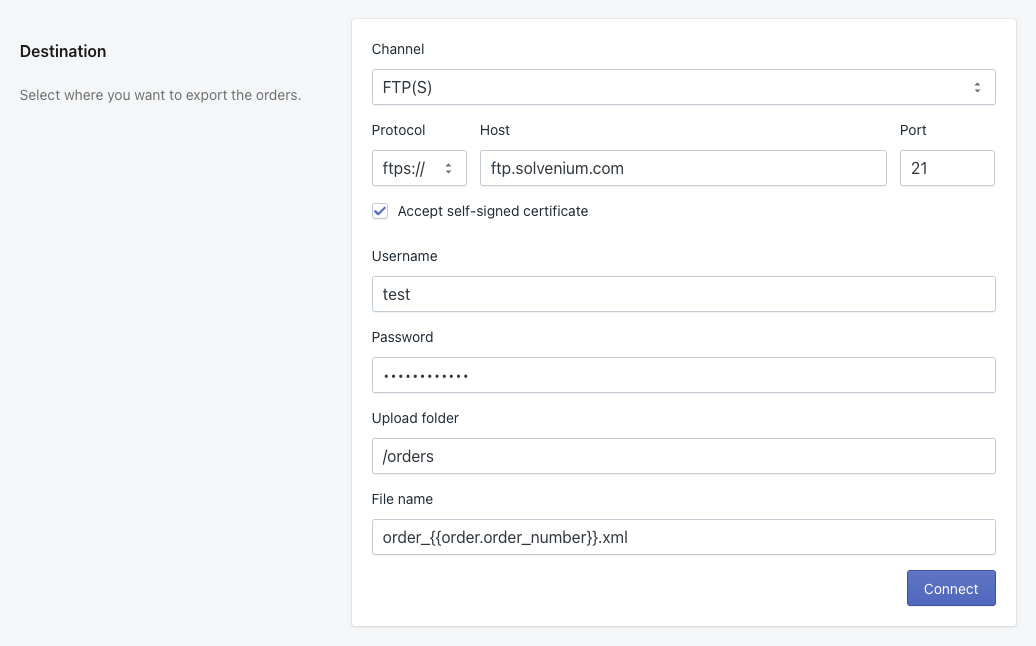
Exporteo FTP(S) destination settings
## Protocol
Select the protocol for the FTP connection:
Protocol
Description
Default Port
ftp://
Standard FTP (unencrypted)
21
ftps://
FTP over TLS/SSL (encrypted)
990
sftp://
SSH File Transfer Protocol
22
{% hint style="warning" %}
Standard FTP transmits credentials and data in plain text. For security, use FTPS or SFTP whenever possible.
{% endhint %}
### Accept self-signed certificate
When using **ftps\://**, an additional checkbox appears: **Accept self-signed certificate**. Enable this option if your FTP server uses a self-signed SSL certificate instead of a certificate issued by a trusted Certificate Authority.
## Host
Enter the hostname or IP address of the FTP server, for example `ftp.example.com` or `11.22.33.44`.
Do not include the protocol prefix (ftp\://, ftps\://, sftp\://) in this field—select the protocol from the dropdown instead.
## Port
The port number for the FTP connection. Default ports are automatically set based on the selected protocol:
* **FTP**: 21
* **FTPS**: 990
* **SFTP**: 22
Change the port if your server uses a non-standard port configuration.
{% hint style="info" %}
Some FTPS servers use explicit TLS on port 21 instead of implicit TLS on port 990. If you have trouble connecting with port 990, try using port 21.
{% endhint %}
## Username
The username for FTP authentication.
## Password
The password for FTP authentication.
{% hint style="info" %}
Your FTP password is stored securely and encrypted. It will not be visible after saving.
{% endhint %}
## Upload folder
The directory path on the FTP server where files will be uploaded. Leave empty to upload to the root directory or the user's home directory.
Examples:
* `/orders` - upload to the "orders" folder in the root directory
* `/incoming/shopify` - upload to a nested folder relative to the home directory
* Leave empty - upload to the root directory
{% hint style="info" %}
The folder path syntax may vary depending on your FTP server configuration. If you're unsure, consult your FTP server administrator or test with different path formats.
{% endhint %}
## File name
The name of the file to be created on the FTP server. You can use [Liquid variables](/liquid/liquid-variables.md) to generate dynamic file names.
Examples:
* `order_{{order.order_number}}.xml` - creates files like `order_1023.xml`
* `{{order.order_number}}_{{order.created_at | date: "%Y%m%d"}}.json` - creates files like `1023_20240506.json`
* `export_{{order.id}}.csv` - creates files like `export_5678901234.csv`
{% hint style="warning" %}
Ensure your file names are unique to prevent overwriting existing files. Including the order number or order ID in the file name is recommended.
{% endhint %}
## Connect
Click the **Connect** button to test your FTP connection before saving. Exporteo will attempt to:
1. Establish a connection to the FTP server
2. Authenticate with the provided credentials
3. Verify access to the upload folder (if specified)
If the connection is successful, the settings will be confirmed. If it fails, an error message will help you diagnose the issue.
### Common connection issues
| Error | Possible cause | Solution |
| --------------------- | ----------------------- | ------------------------------------------- |
| Connection refused | Wrong host or port | Verify the hostname and port number |
| Authentication failed | Wrong credentials | Check username and password |
| Certificate error | Self-signed certificate | Enable "Accept self-signed certificate" |
| Timeout | Firewall blocking | Check firewall rules allow FTP traffic |
| Directory not found | Wrong upload folder | Verify the folder path exists on the server |